Blickfeld Qb Method Node
The Blickfeld Qb Method node is the core building block of Blickfeld Flow. It calls any method of the Qb gRPC API - on the local device or on a Qb in the same network - with the request and response messages available as plain JSON.
This guide follows the style of the Node-RED documentation: each section explains a part of the node and, where useful, provides a flow snippet you can copy and import directly (menu btn:[≡] → Import).
The node editor
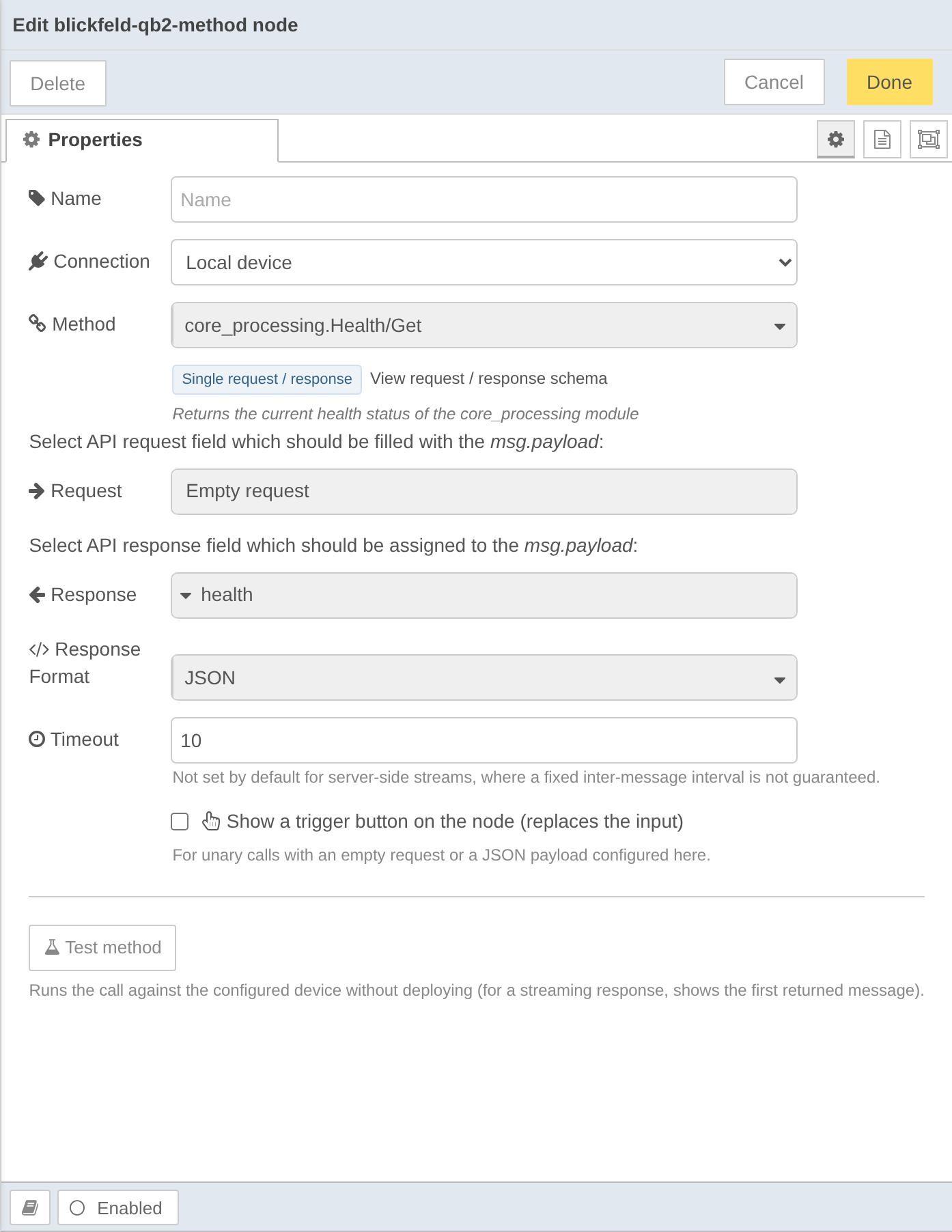
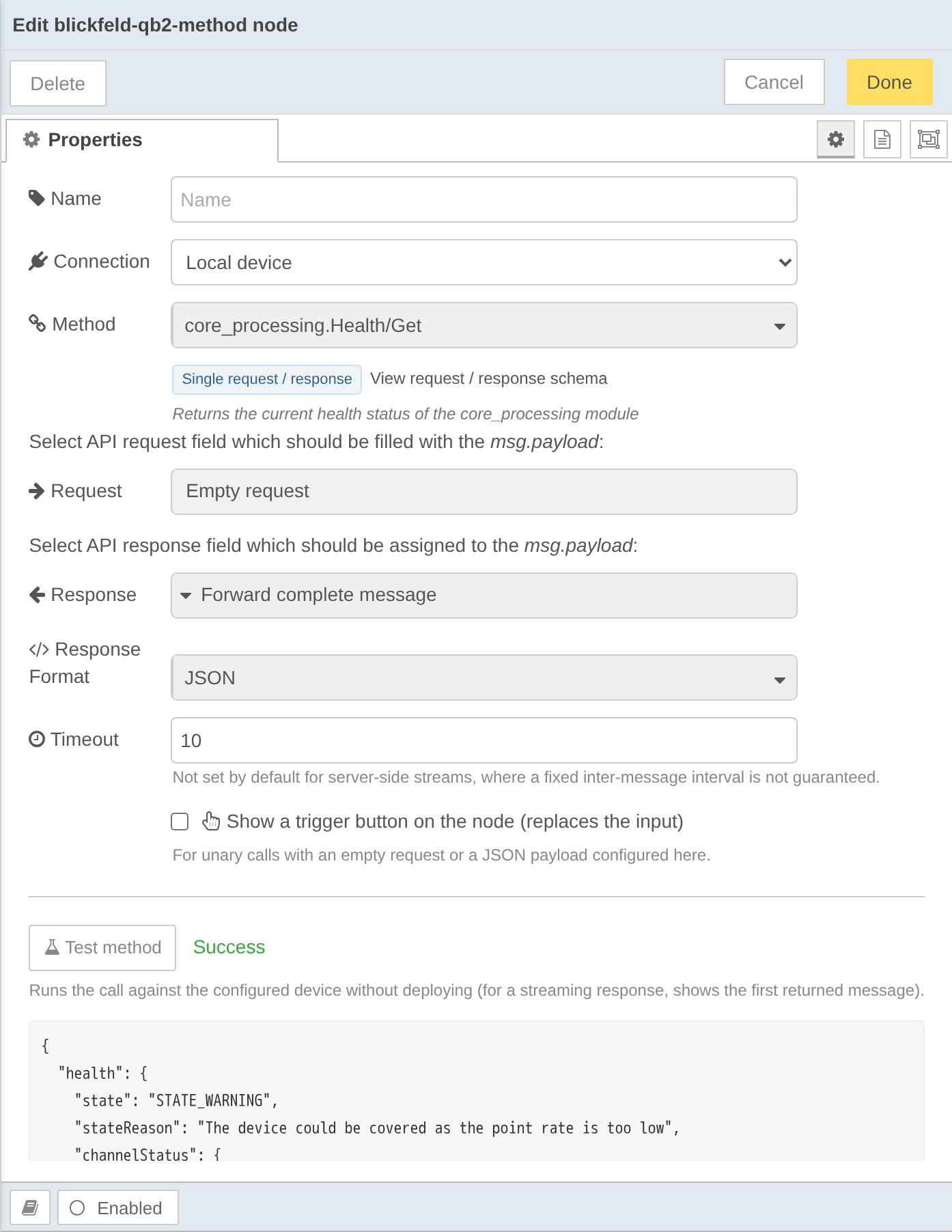
Drag a blickfeld-qb2-method node into a flow and double-click it to open the editor.
All settings are configured here: the connection, the method to call, how the request and response map to msg.payload, and streaming behaviour.
Connecting to a device
The Connection selector chooses how the node reaches the device:
- Local device (default)
-
Connects to the built-in device (
qb2.local, resolved on the device itself). No key is required. This is the right choice for flows that run on the Qb they control. - Device configuration
-
Uses a shared blickfeld-device configuration node (see below). Recommended when addressing a networked device, or when several method nodes talk to the same device.
- Legacy configuration
-
Exposes the inline IP or FQDN and Key fields. This keeps flows created before the configuration node existed working unchanged.
| For access to a networked (non-local) device, an application key is required. Create one on the device and store it in a blickfeld-device node. |
The blickfeld-device configuration node
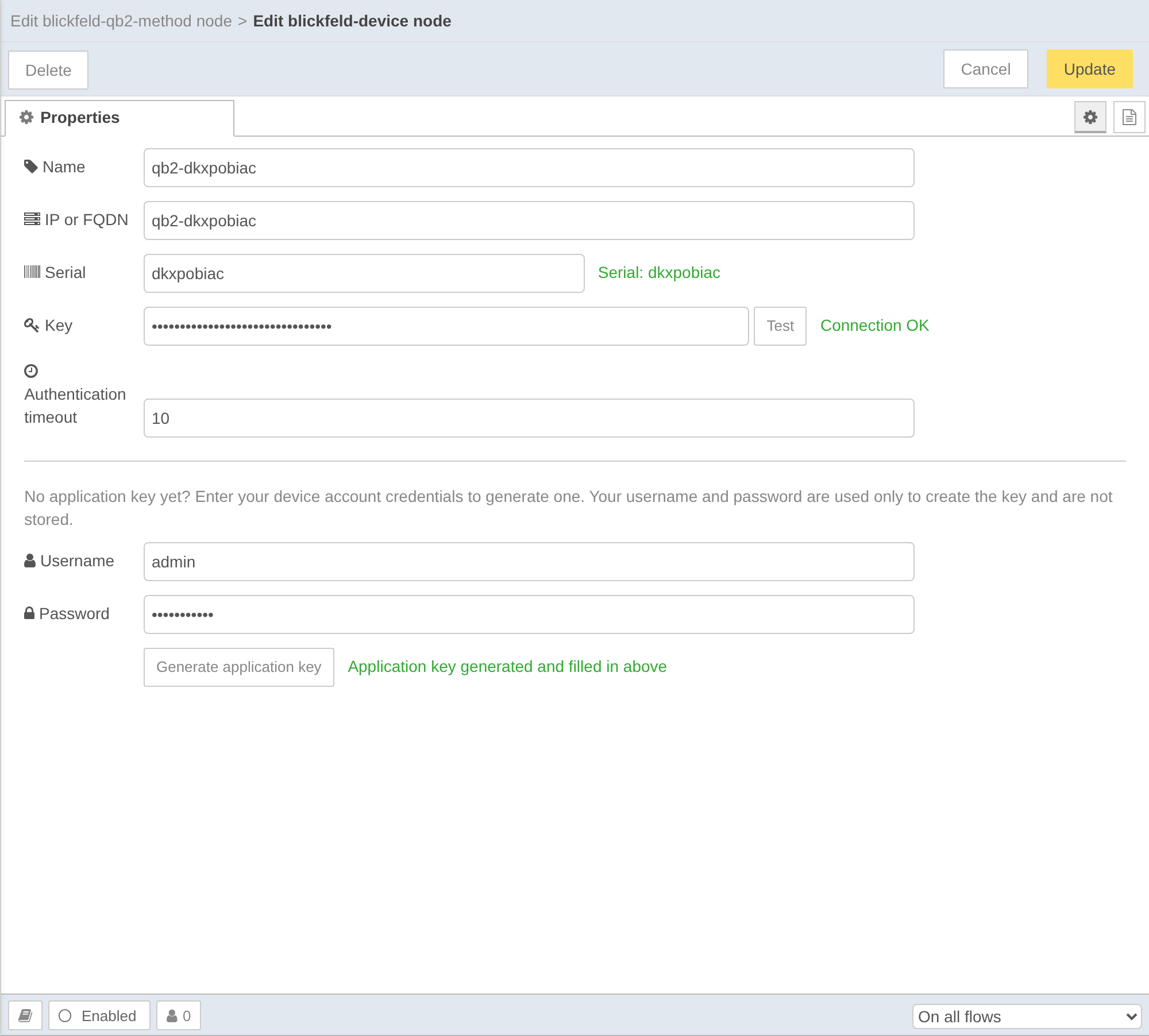
A blickfeld-device node stores a single device connection that can be shared by many method nodes - change the address or key in one place. Add one from a method node’s Device field (select Add new blickfeld-device… and click the pencil), or from menu btn:[≡] → Configuration nodes.
-
IP or FQDN - the device address. When it is set, the node connects automatically and reads the device Serial number.
-
Serial - detected automatically and used to verify the device’s TLS server identity.
-
Key - the application key, stored as an encrypted credential. It is never written to exported flows. Use btn:[Test] to verify it - the key is also checked automatically when the dialog opens.
-
Authentication timeout - how long to wait for the login, in seconds (default 10).
If you do not have an application key yet, enter your device account username (e.g. admin) and password and click btn:[Generate application key].
The credentials are used only to create the key and are not stored; the generated key is filled into the Key field above.
Selecting a method
Choose the gRPC method in the Method field (for example core_processing.Health/Get).
Below the field a short summary shows the call style - Single request / response, Server stream (multiple responses), Client stream (multiple requests) or Bi-directional stream - together with the method’s description and a View request / response schema link that opens the full schema in a dialog.
Reading the request and response schema
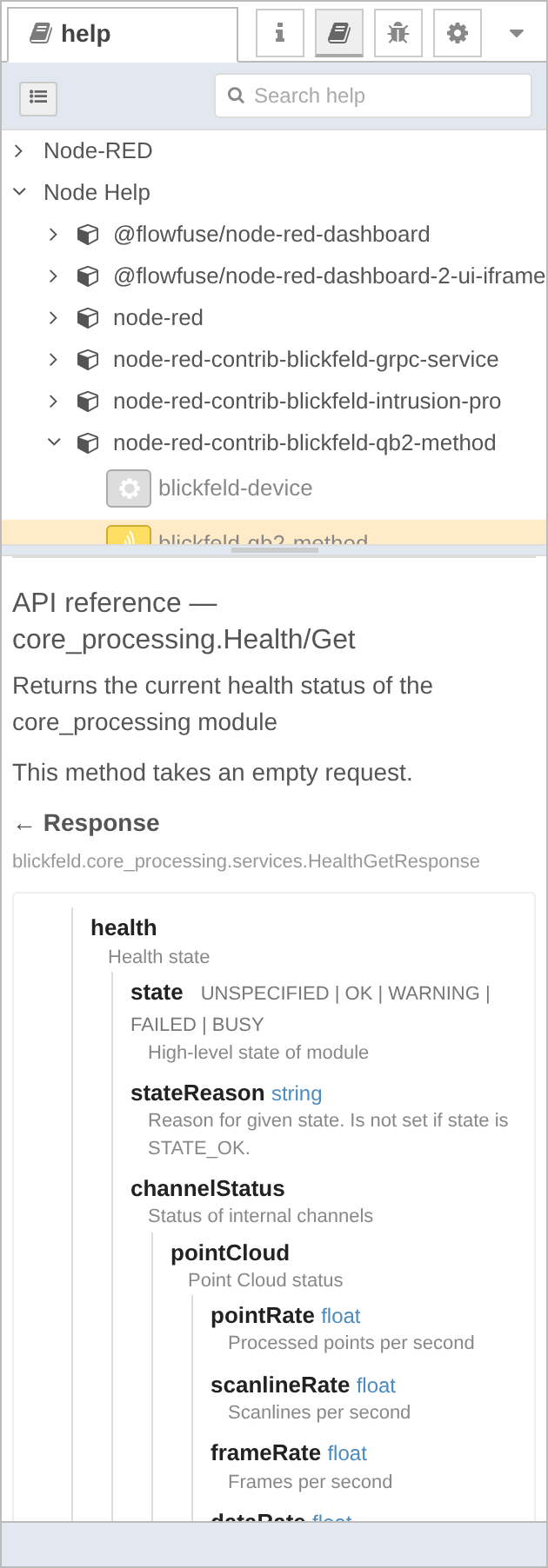
The selected method’s schema is shown automatically in the Help sidebar (btn:[≡] sidebar → Help, or press kbd:[Ctrl+H]), under an API reference section appended to the node’s help.
It lists the nested request and response fields with their types, enum values, repeated/oneof markers and the per-field documentation from the protocol - so you can discover the available fields without leaving the editor.
Building the request interactively
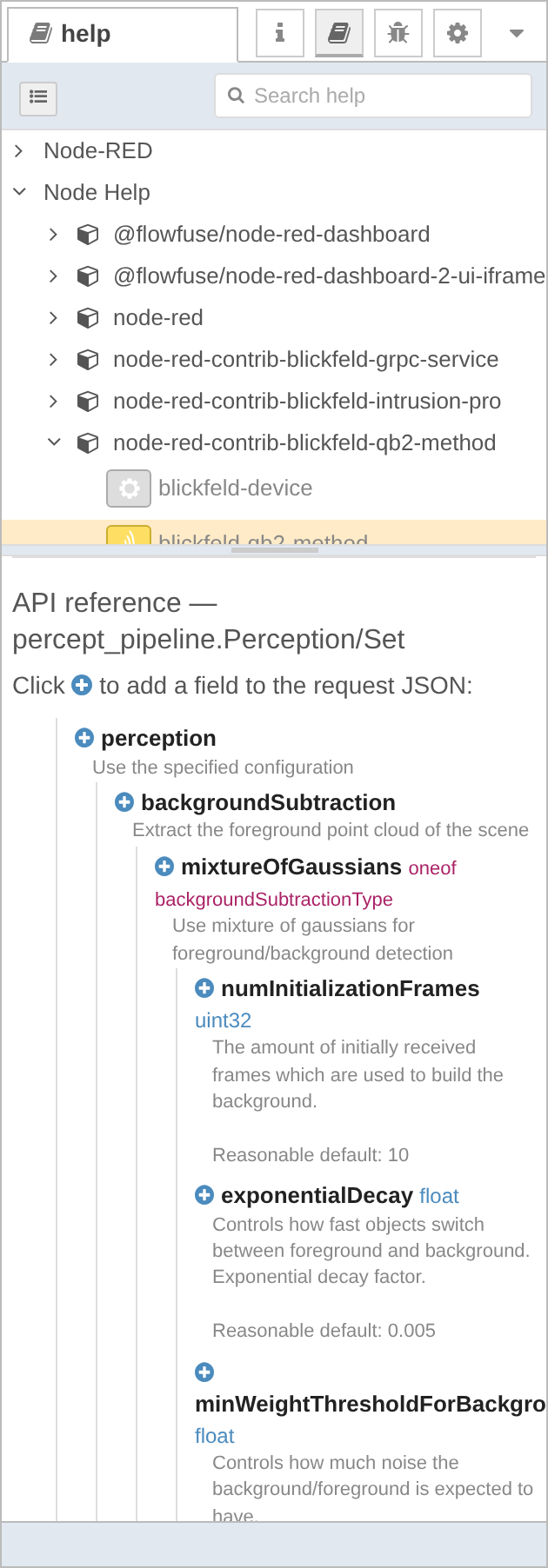
When the Request is set to JSON (see below), the API reference becomes interactive: every request field gets a ⊕ icon. Clicking it inserts that field - at its full path, creating any parent objects - into the request JSON with a sensible placeholder value, so you can assemble the request by clicking fields and then fine-tune the JSON. If the full-screen JSON editor is open, the field is inserted live into it.
Mapping request and response
The Request selector controls what is sent as the request message:
-
a field name wraps
msg.payloadinto that request field, -
Forward complete message (
\*) sendsmsg.payloadas the entire request, and -
JSON sends a fixed JSON value configured on the node (see Building the request interactively above).
The Response selector controls what is assigned to msg.payload of the outgoing message - a single response field, or the complete response message.
The Response Format can be JSON (default), a Protobuf-ts object, or the raw Protobuf binary buffer.
The Timeout (seconds) applies to non-streaming calls and defaults to 10. It is left unset by default for server-side streams, where a fixed inter-message interval is not guaranteed (for example event streams).
Testing a method in the editor
Click btn:[Test method] to run the configured call against the device without deploying the flow, and see the response - or the failure - inline.
This is available for self-contained calls: those whose request is empty or provided here as JSON (a call that needs an incoming msg cannot be tested standalone).
For a streaming response, the first returned message is shown.
Triggering with a button
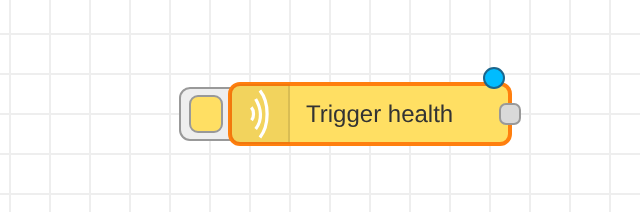
For a self-contained call you can turn the node’s input into an inject-style trigger button: enable Show a trigger button on the node (replaces the input). The node then shows a button on the canvas that fires the deployed call on click - useful for one-shot commands such as reading the health or toggling a setting.
Streaming and auto-reconnect
Server-side streaming methods (such as Health/Watch or Event/Stream) stay open and emit one message per received item.
Enable Auto reconnect to keep such a stream alive: on an error or unexpected end the node re-establishes the connection (re-authenticating if a key is used) after the configured Reconnect interval, and keeps retrying indefinitely. The error is still reported on every failed attempt, so a connected catch node fires and the node status reflects the failure while reconnecting. Auto reconnect is enabled by default for server-streaming methods and has no effect on other methods; its controls appear only when a server-streaming method is selected.
To stop a running stream, send a message with msg.reset set to true (for example from an inject or button node). The node tears down the active call and does not reconnect.
Examples
Ready-to-import example flows ship with the node. To add one:
-
Open the Import dialog - the btn:[≡] menu (top right) → Import, or press kbd:[Ctrl+I].
-
Select the Examples tab on the left (next to Clipboard and Local).
-
Expand flows → node-red-contrib-blickfeld-qb2-method and choose an example.
-
Choose current flow or new flow and click btn:[Import].
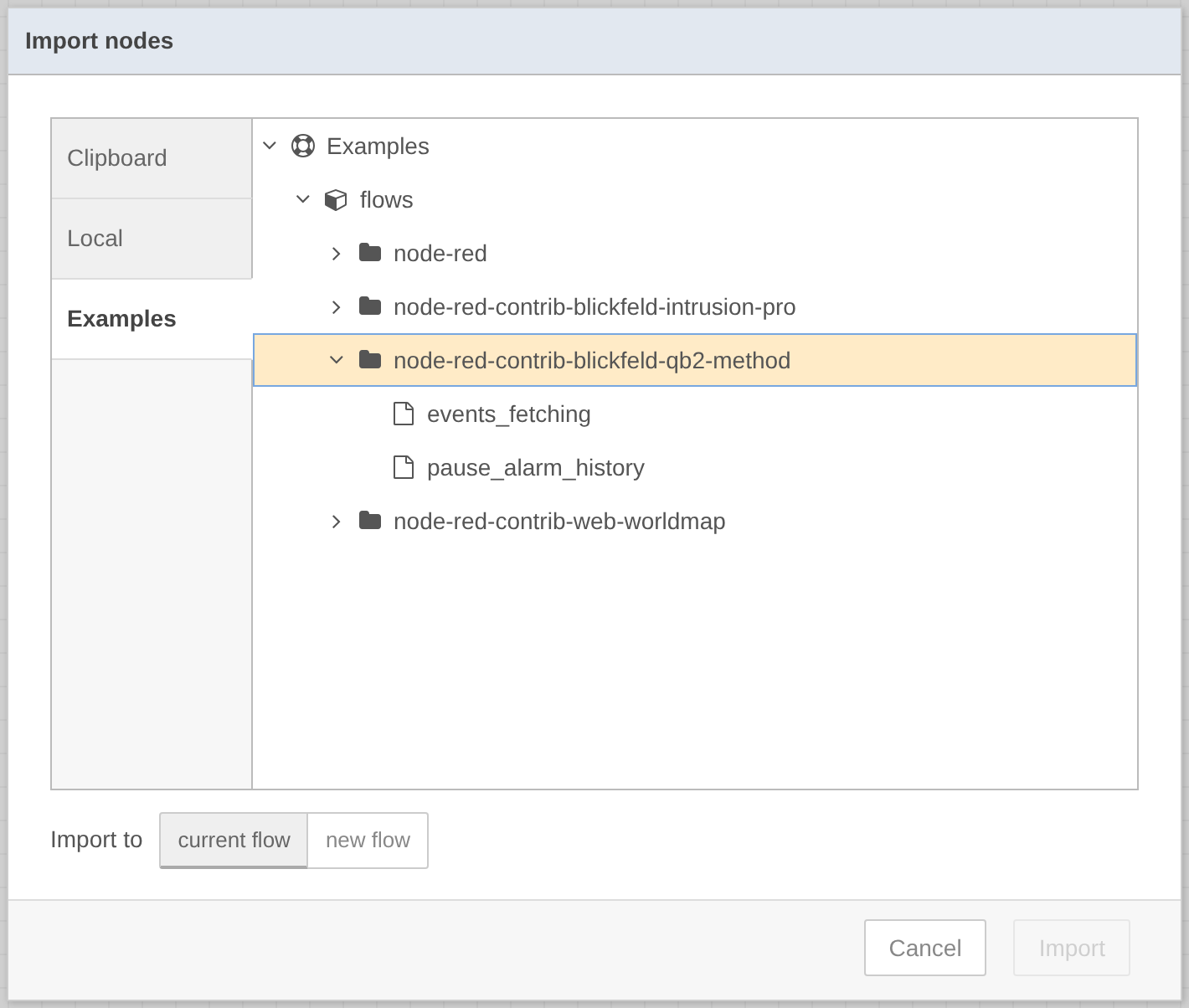
Two examples are provided:
- Fetch perception events
-
Streams perception events with auto-reconnect enabled.
- Operation schedule - pause alarm history
-
Pauses and resumes the perception alarm history on a daily schedule by reading the current configuration, toggling
history.pause, and writing it back.
The imported Fetch perception events flow - an inject to start streaming, the method node, and a catch node that reports reconnect errors:
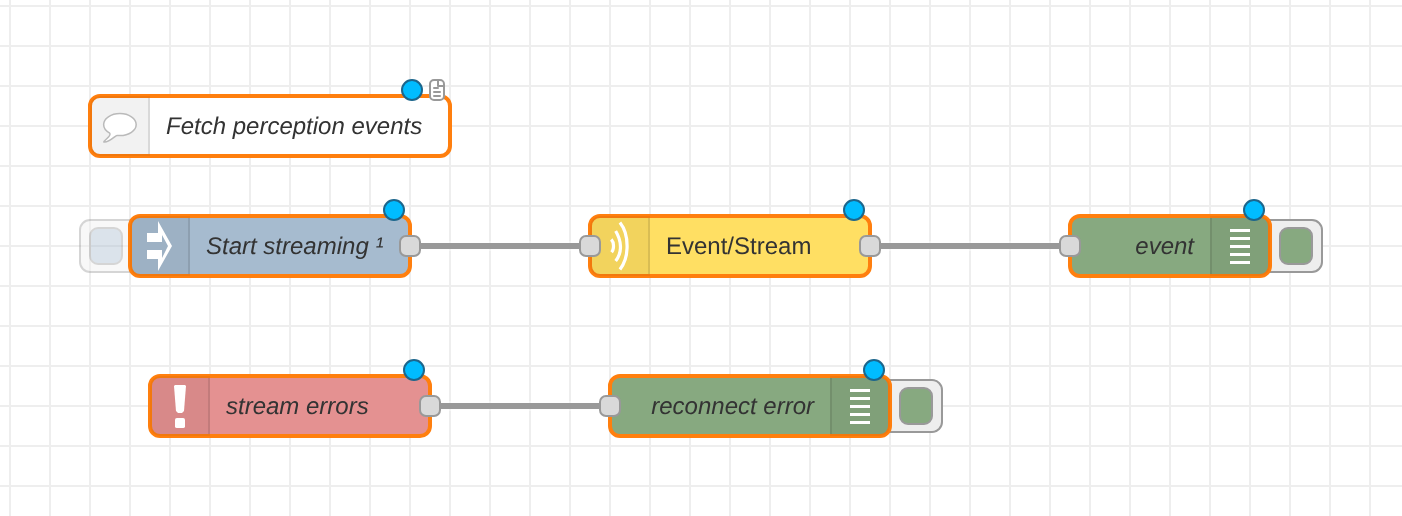
The events flow can also be copied directly from here:
[
    {"id":"ex_events_inject","type":"inject","z":"f","name":"Start streaming","props":[],"once":true,"onceDelay":0.5,"topic":"events","x":200,"y":120,"wires":[["ex_events_method"]]},
    {"id":"ex_events_method","type":"blickfeld-qb2-method","z":"f","name":"Event/Stream","device":"","fqdn":"qb2.local","key":"","method":"/blickfeld.percept_processing.services.Event/Stream","request":"","request-type":"*","response":"","response-type":"*","response-format":"json","timeout":"","autoReconnect":true,"reconnectInterval":"5","x":430,"y":120,"wires":[["ex_events_debug"]]},
    {"id":"ex_events_debug","type":"debug","z":"f","name":"event","active":true,"tosidebar":true,"complete":"payload","x":650,"y":120,"wires":[]},
    {"id":"ex_events_catch","type":"catch","z":"f","name":"stream errors","scope":["ex_events_method"],"uncaught":false,"x":210,"y":200,"wires":[["ex_events_error"]]},
    {"id":"ex_events_error","type":"debug","z":"f","name":"reconnect error","active":true,"tosidebar":true,"complete":"error","x":440,"y":200,"wires":[]}
]
References
-
The Protocol section of this documentation - full description of the available gRPC services, methods and messages
-
Blickfeld Qb protocol definitions on GitHub