Geutebrueck
This section provides information on how to integrate QbProtect with Geutebrueck G-Core. Please refer to the ONVIF section beforehand for general information on using ONVIF with QbProtect.
|
The following Geutebrück components have been used in the examples below:
|
Add Device
|
Events originating from dynamic event sources (e.g., security zones) have to be correctly exposed to the VMS each time a new zone configuration is introduced via WebGUI. Please either pre-configure all the required security zones in WebGUI before adding the QbProtect into the VMS or re-toggle |
The G-Set tool is used to add QbProtect into Geutebrück G-Core VMS.
The procedure includes the following steps:
-
Launch G-Set and connect to the active G-Core server instance
-
Navigate to
Media channels/Hardware→Hardware→Hardware module list→Add device→ONVIF IPC IP camera plugin settings -
Navigate to
Module channel→Hardware settings→ give a distinguishable name to the QbProtect device, e.g.,QbProtect -
Navigate to the
ConnectionTab -
Enter the FQDN or IP of QbProtect in the
Hostnamefield andUsername/Passwordin the corresponding credential fieldsPlease refer to the User authentication subsection to find out how to obtain valid ONVIF credentials required for QbProtect VMS integrations.
-
Toggle
Use Httpsto enable secure connection on port 443 (enables secure ONVIF connection and an encrypted RTSP stream)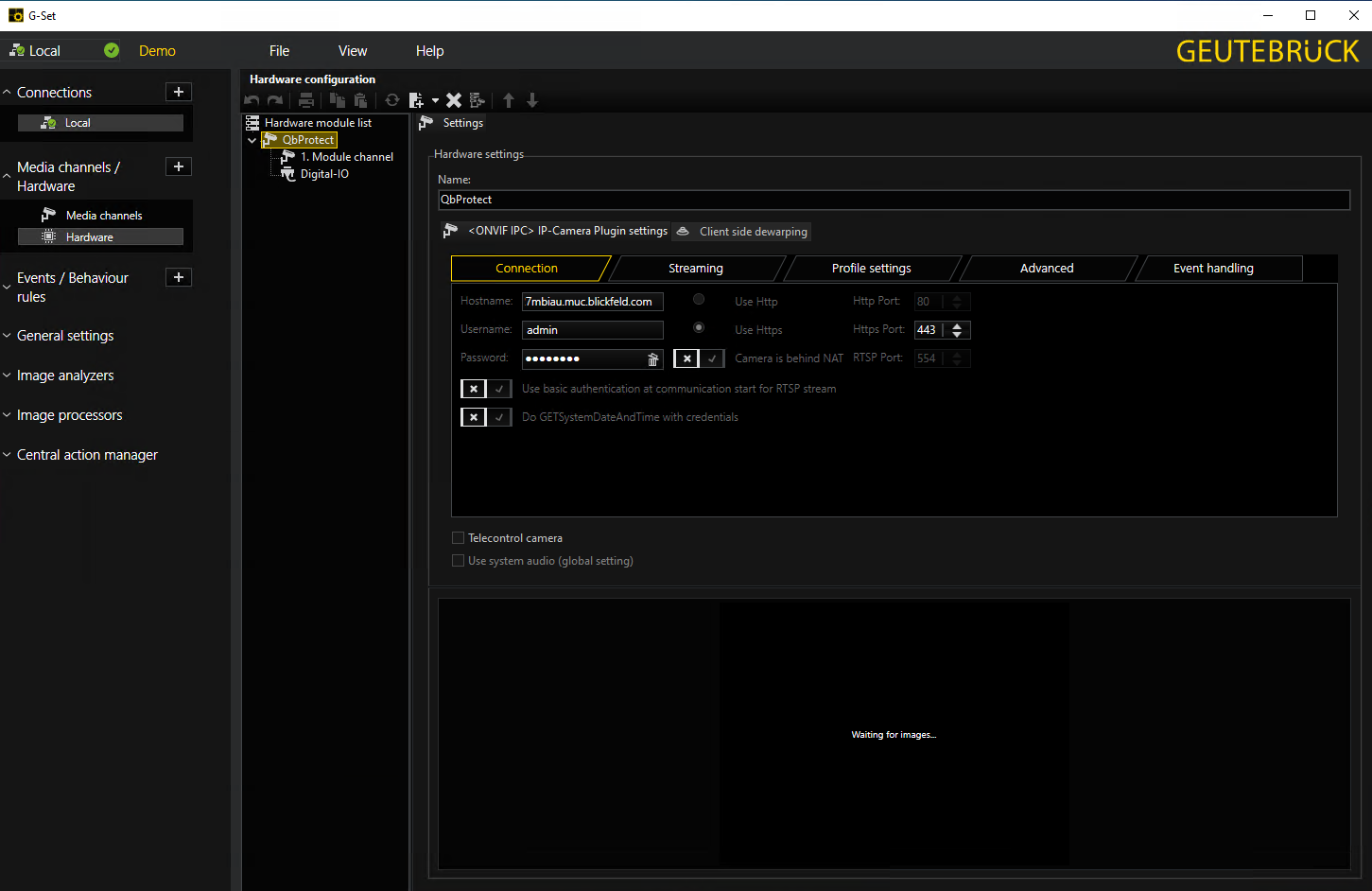 Figure 1. Adding QbProtect into Geutebrück G-Core: G-Set hardware configuration
 -
Navigate to
Media channels/Hardware→Media channels→Live Streaming→ selectChannel 001as a media channel source -
Send these configuration settings to the G-Core server using the corresponding button in the top left corner
-
The live preview of the point cloud should be available in the preview window of G-Set
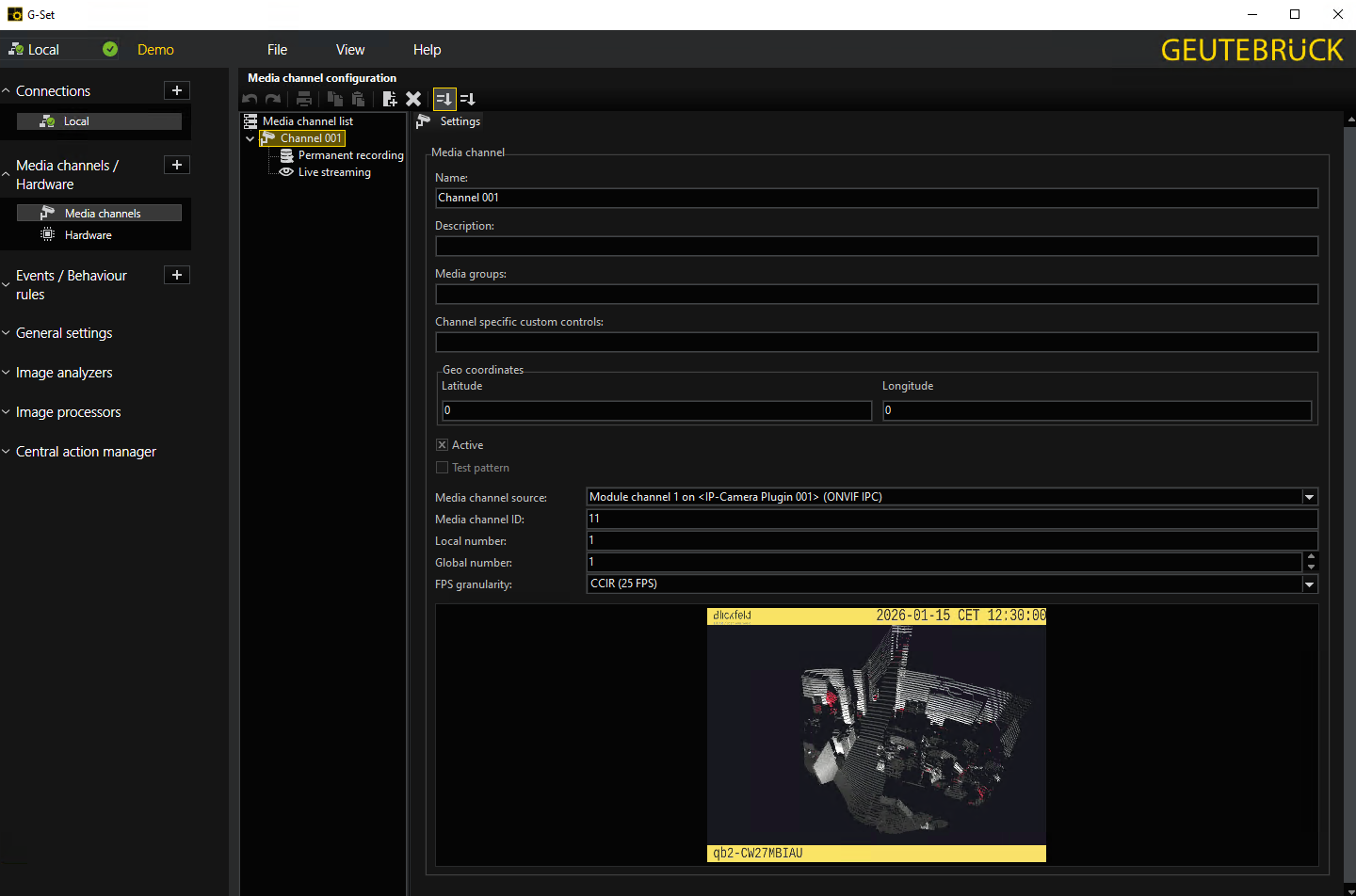 Figure 2. Adding QbProtect into Geutebrück G-Core: G-Set media channel configuration
 -
Launch G-View and connect to the active G-Core server instance
-
QbProtect should be available as a video channel source → Drag and drop it into the G-View viewer
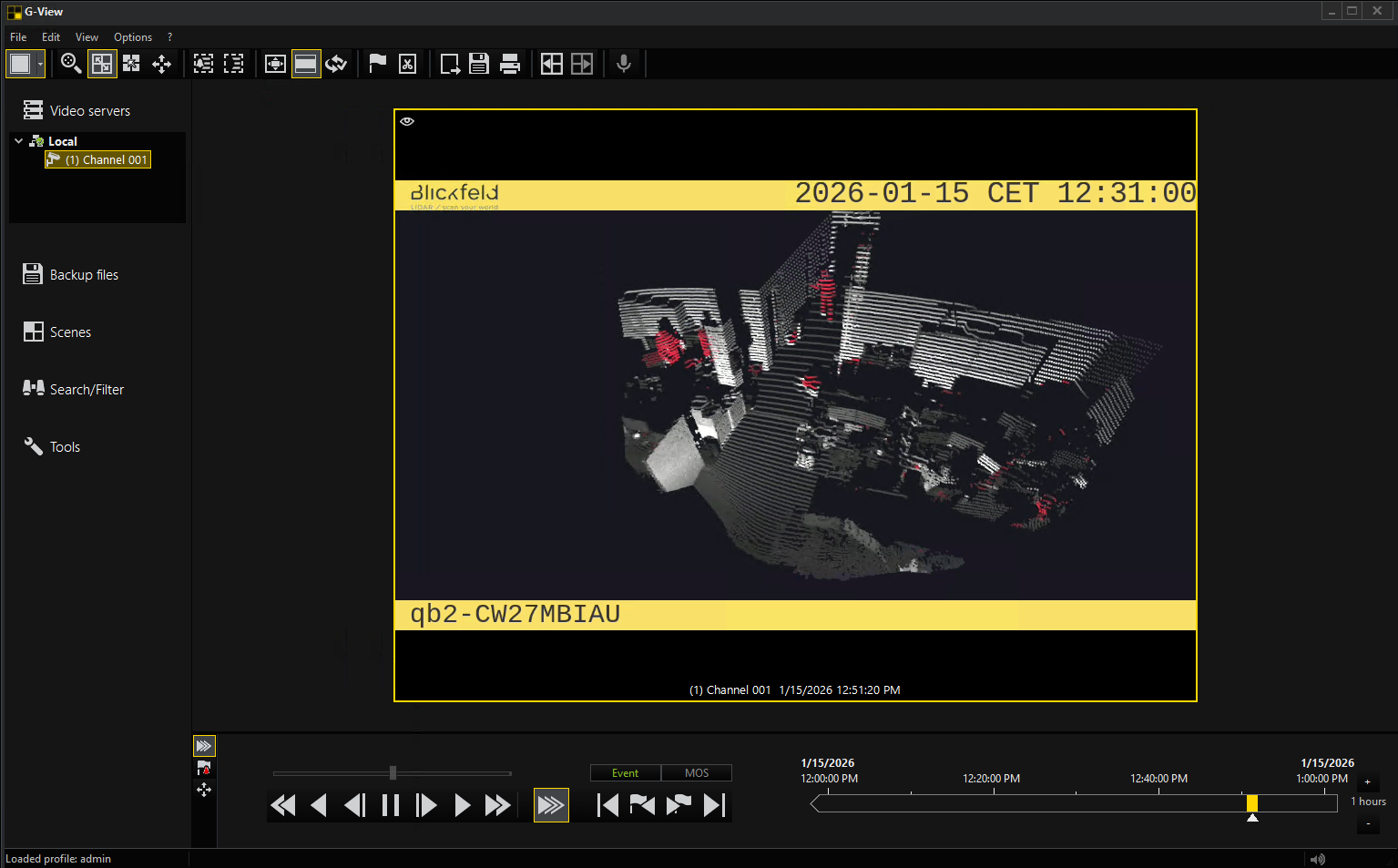 Figure 3. Adding QbProtect into Geutebrück G-Core: G-View live video stream
|
The perspective of the RTSP video stream in VMS can be synchronized with the one configured in the WebGUI. For that, navigate to the Viewer page of the QbProtect WebGUI, configure the desired view perspective, and apply the keyboard shortcut Shift+V. |
The live video stream of the QbProtect point cloud can be accessed and observed in Geutebrück G-View after successfully completing the required steps above.
Events
The example below shows how QbProtect events can be used to trigger alarms in Geutebrück G-Core VMS. After QbProtect has been added to the G-Core, it can be configured to use QbProtect events for alarm generation.
|
Please refer to the Events subsection to learn about the available ONVIF event topics. |
Configure Events Handling
In this example, a single security zone called Security Zone 1 has been configured using QbProtect WebGUI, as shown in the Figure below.
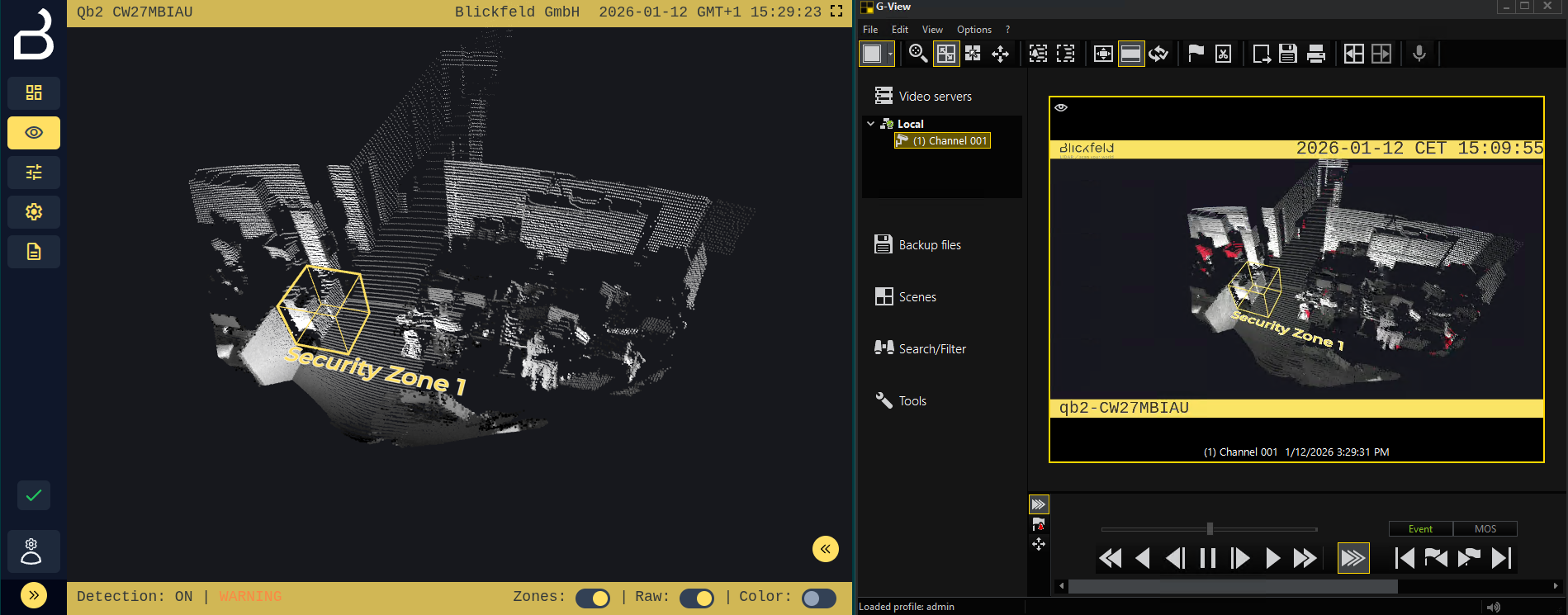
The events configuration procedure includes the following steps:
-
Launch G-Set and connect to the active G-Core server instance (optional)
-
Navigate to
Media channels/Hardware→Hardware→Hardware module list→QbProtect→Module channel -
Navigate to the
Event handlingtab → ToggleEnable Event Handling with…→ selectWS-BaseNotification -
Toggle
Send unkown events as…→ selectOnvifNotificationMessage Action -
Send these configuration settings to the G-Core server using the corresponding button in the top left corner
-
Trigger the
Get event info!button to get the list of supported QbProtect events -
The topic
tns1:Blickfeld/IntrusionZoneSecurityZone1corresponding to the configuredSecurity Zone 1should be displayed in the list of available events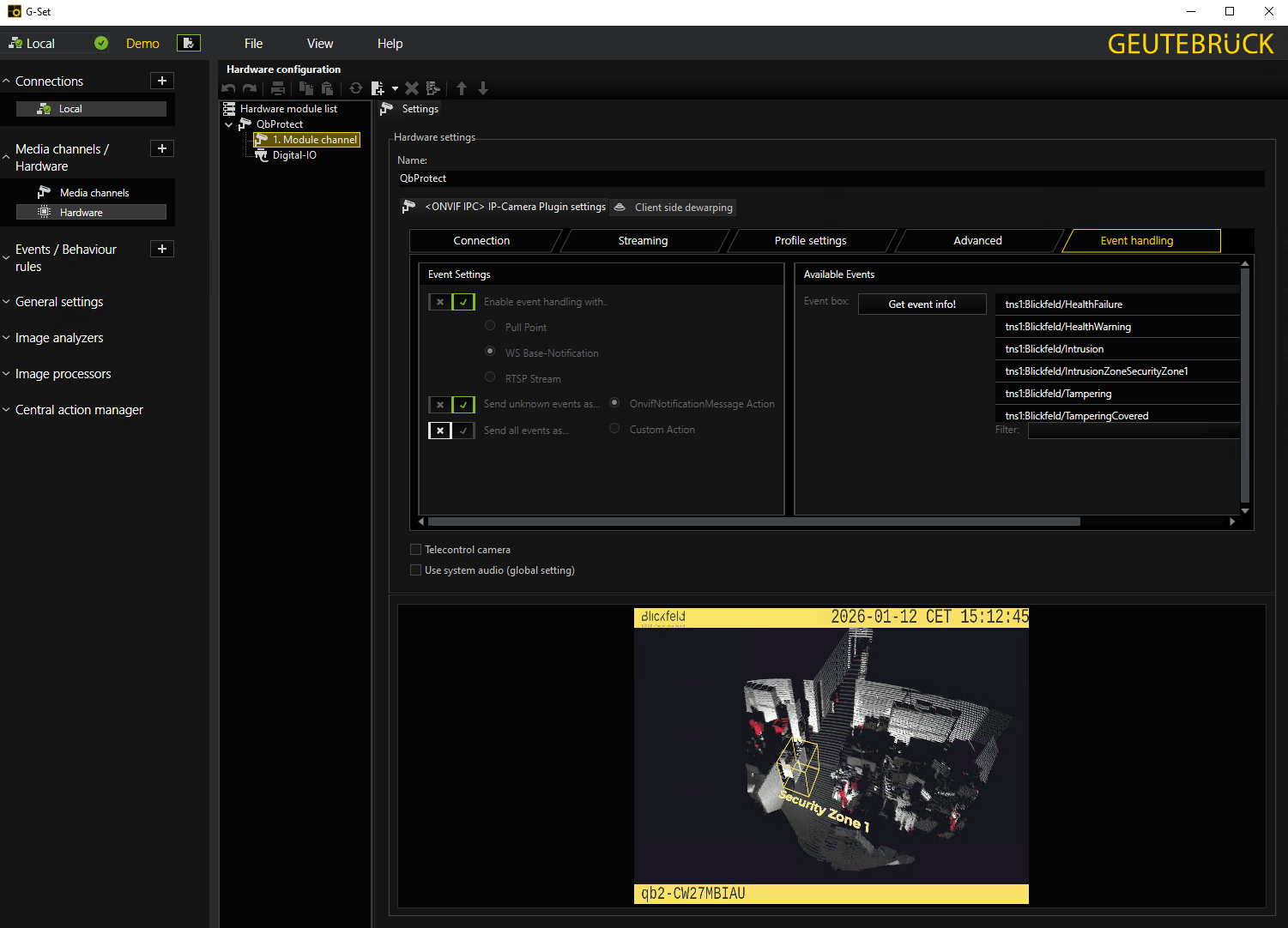 Figure 5. Geutebrück G-Set: configuration of events handling and the list of supported QbProtect events
 -
Launch
G-PLC Simulatorand connect to the active G-Core server instance -
Server logs should now contain
OnvifNotificationMessagepayloads corresponding to the list of supported QbProtect events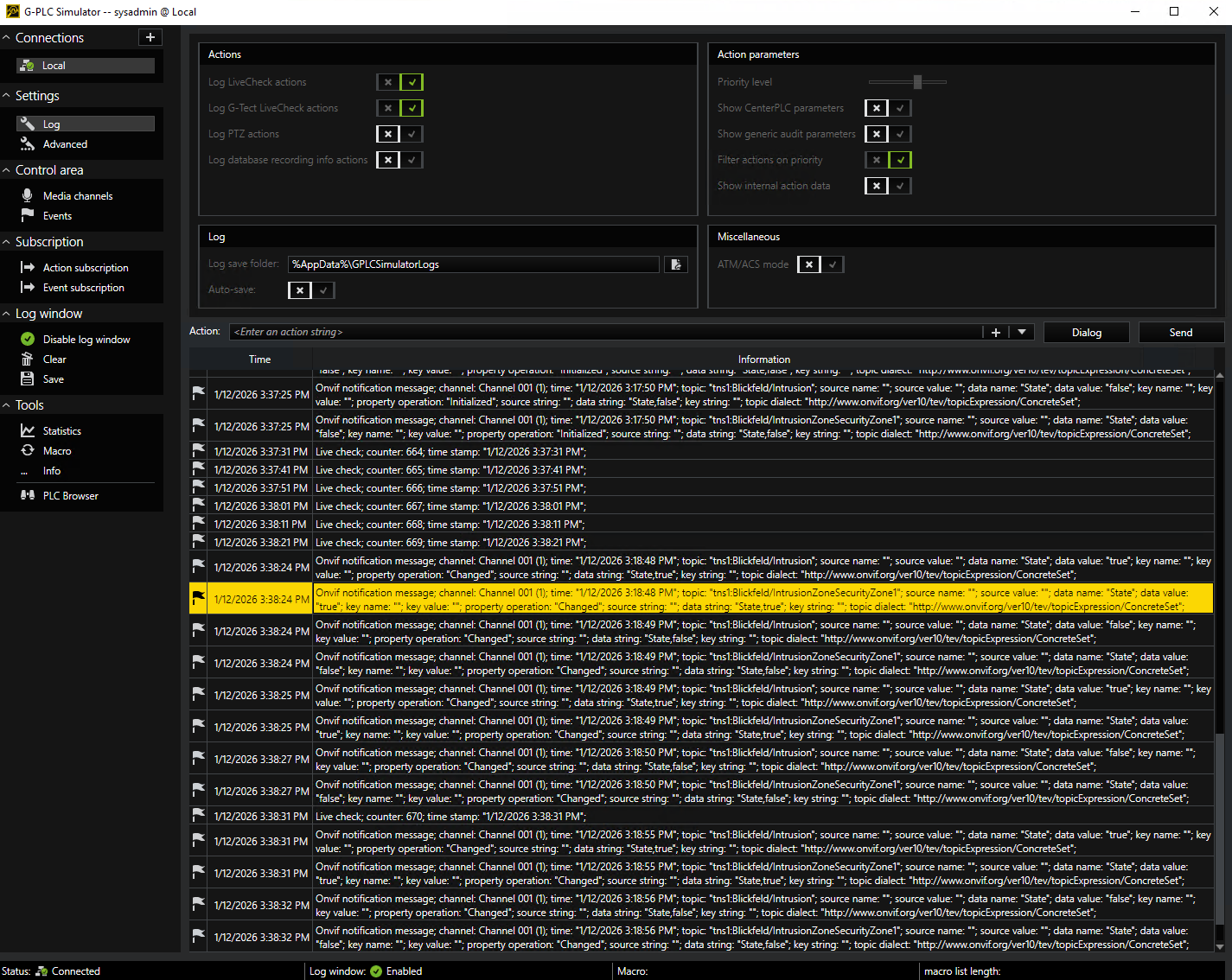 Figure 6. Geutebrück G-PLC: incoming OnvifNotificationMessages with events payload
Configure Rule Chain
The Geutebrück G-Core Events can be used to configure simple rule chains, while Behaviour rules targeting the more sophisticated configurations. In this example, we will consider the simple event rule chain configuration. The Geutebrück event rule chain consists of event source (StartBy and StopBy hooks) and event action (OnStart and OnStop hooks). It allows to map a dedicated action (e.g., manual alarm action, adding entry log, etc.) to the event of the particular type (e.g., motion, zone intrusion).
The event rule chain configuration procedure includes the following steps:
-
Navigate to
Events/Behaviour rules→Events→Event List→Add new event -
Navigate to
Eventtab → give a meaningful name to the event in theNamefield, e.g.,Security Zone 1 Intrusion→ toggle this event to beActive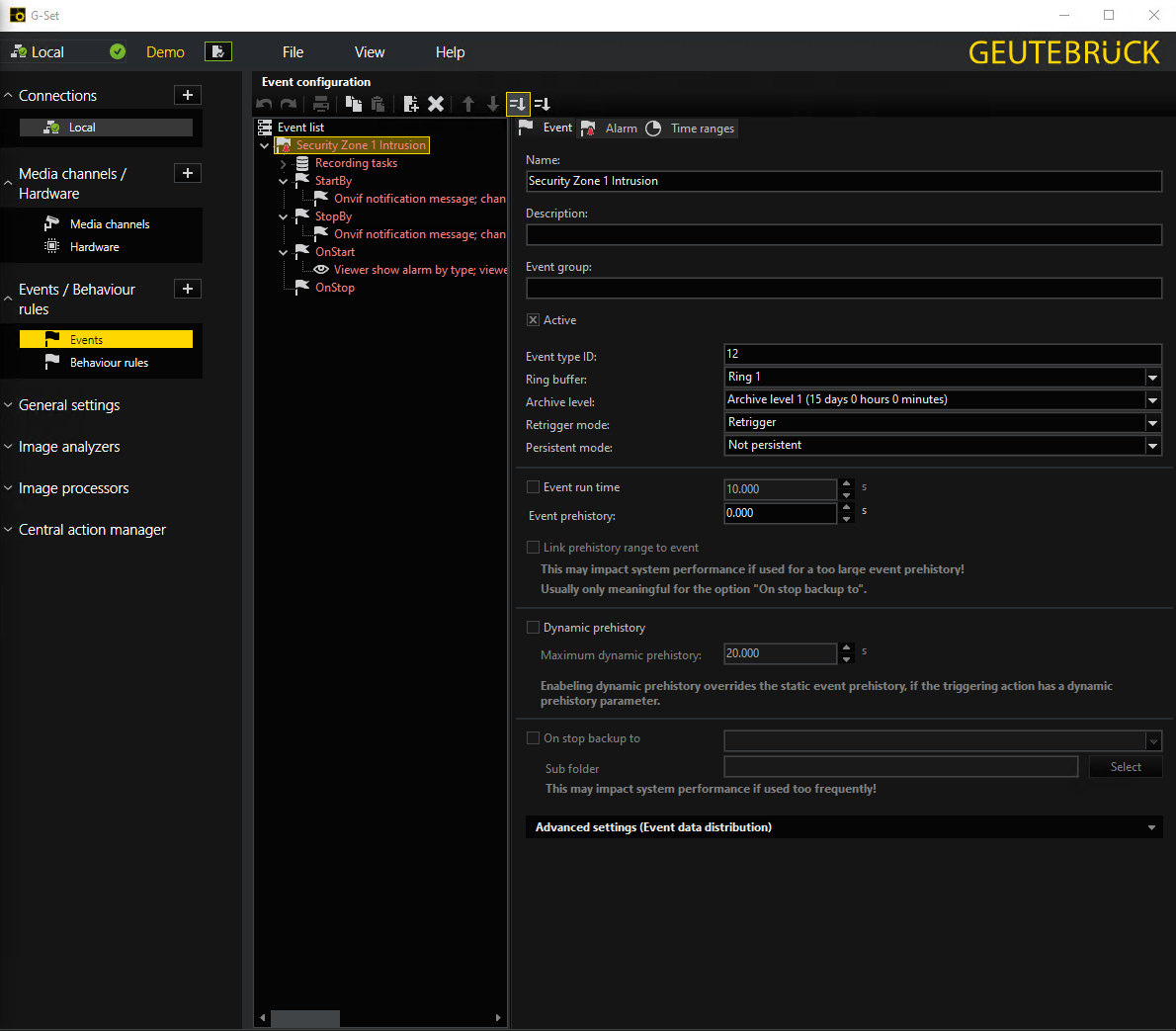 Figure 7. Geutebrück G-Set: event name configuration and activation
 -
Navigate to
Alarmtab → give a meaningful name to alarm in theAlarm Namefield, e.g.,Security Zone 1 Intrusion Alarm→ toggle this alarm to beActive -
Navigate to
Media channelstab of theAlarm tab→ AddChannel 001as media channel source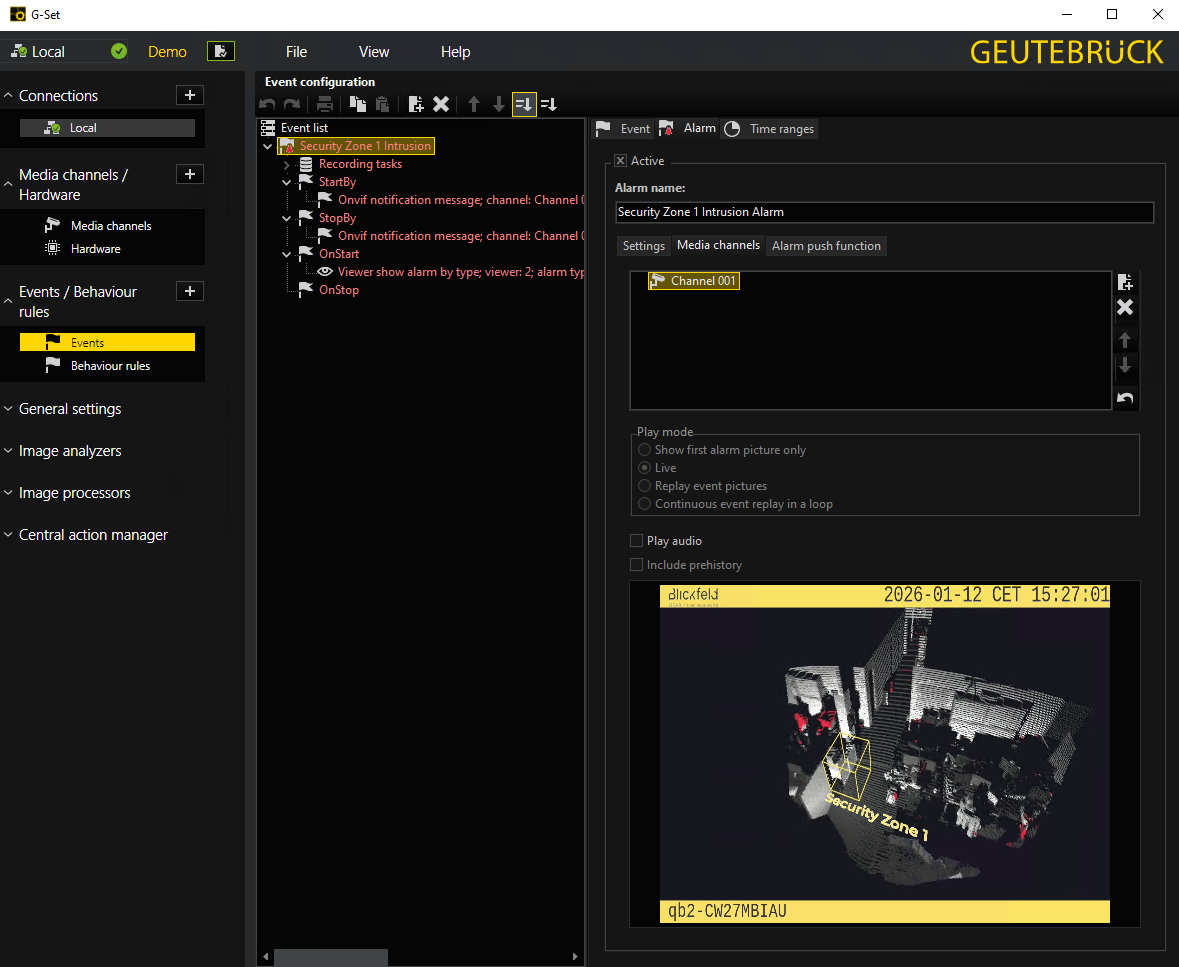 Figure 8. Geutebrück G-Set: alarm name configuration and activation
 -
Right click
StartByhook → Add →Onvif Notification Message→ SelectChannel 001as a channel source → Set topic name totns1:Blickfeld/IntrusionZoneSecurityZone1→ SetData nameandData valuetoStateandTruecorrespondingly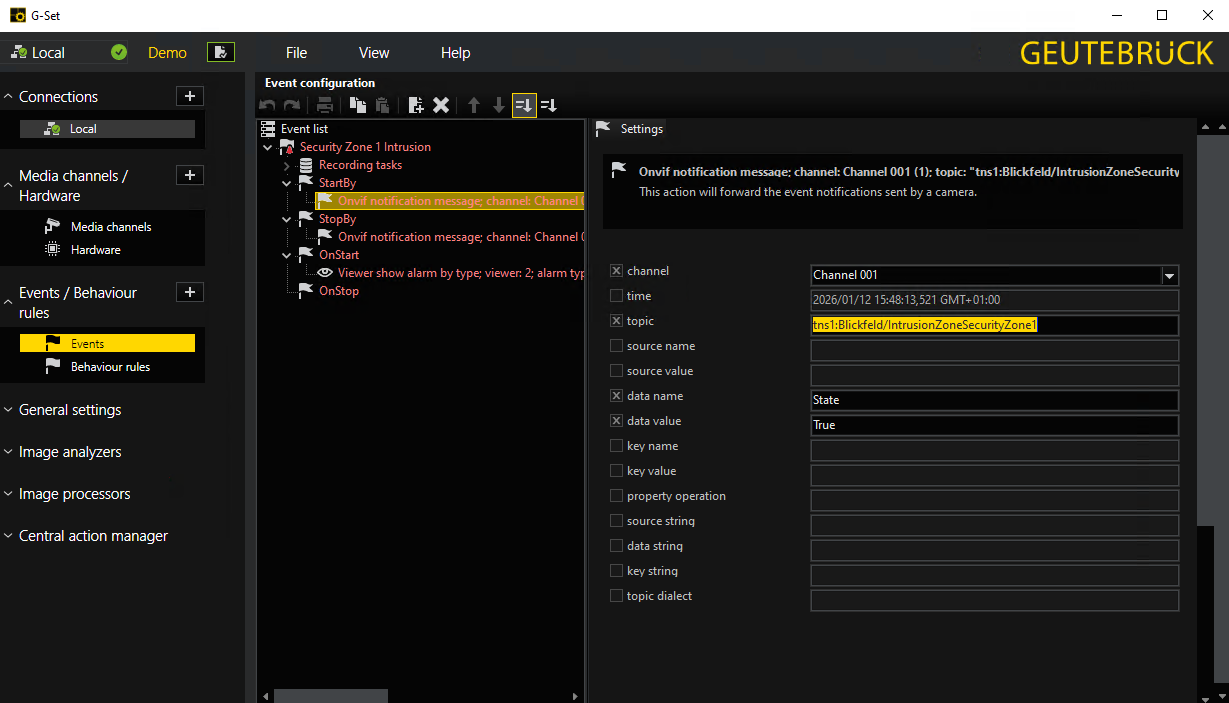 Figure 9. Geutebrück G-Set: event source start trigger configuration
 -
Right click
StopByhook → Add →Onvif Notification Message→ SelectChannel 001as a channel source → Set topic name totns1:Blickfeld/IntrusionZoneSecurityZone1→ SetData nameandData valuetoStateandFalsecorrespondingly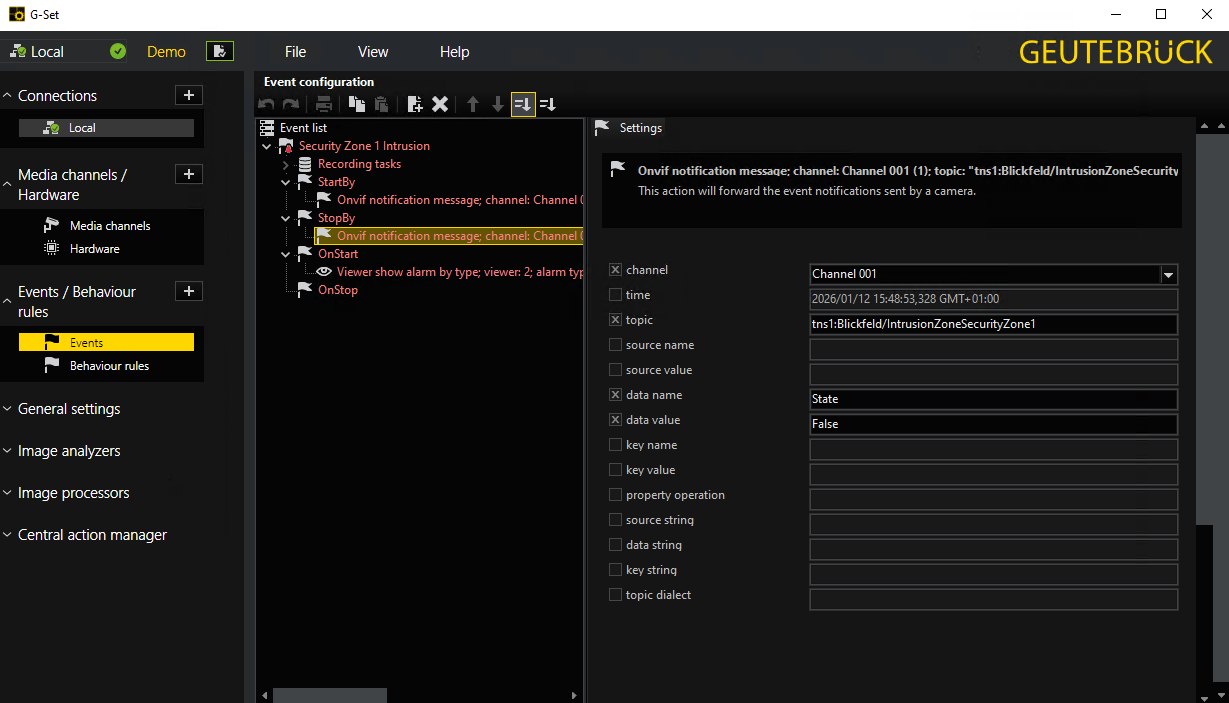 Figure 10. Geutebrück G-Set: event source stop trigger configuration
 -
Right click
OnStarthook → Add →Viewer show alarm by type→ SelectSecurity Zone 1 Intrusionas anAlarm Type→ Assign ID to theViewer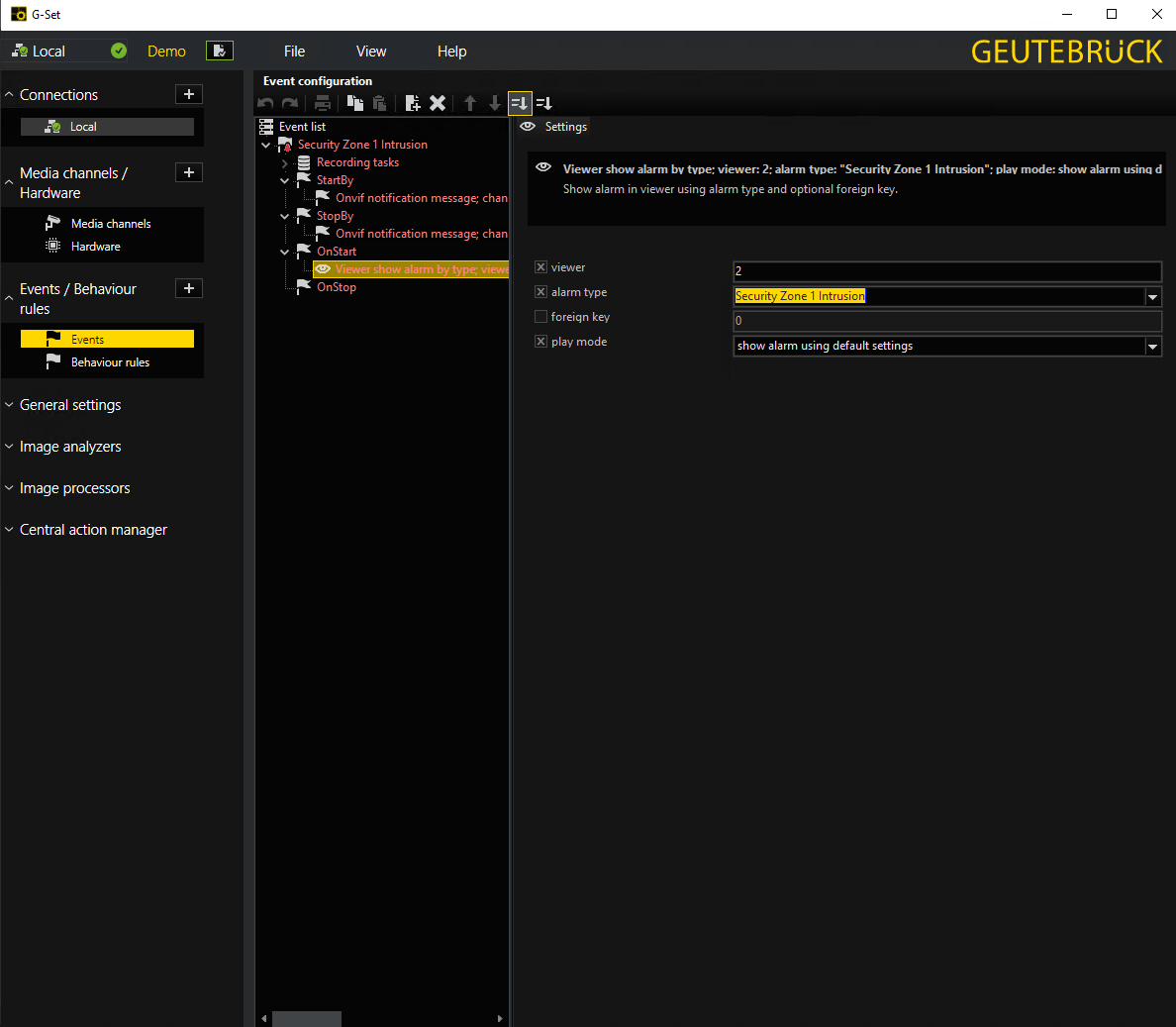 Figure 11. Geutebrück G-Set: event action configuration
 -
Send these configuration settings to the G-Core server using the corresponding button in the top left corner
-
Launch G-View to observe raised alarms and alarm history
-
Make sure that server alarm processing is enabled in G-View. Navigate to
Options→User Options→ switch to tabsAlarms→ toggle `Process Server alarms'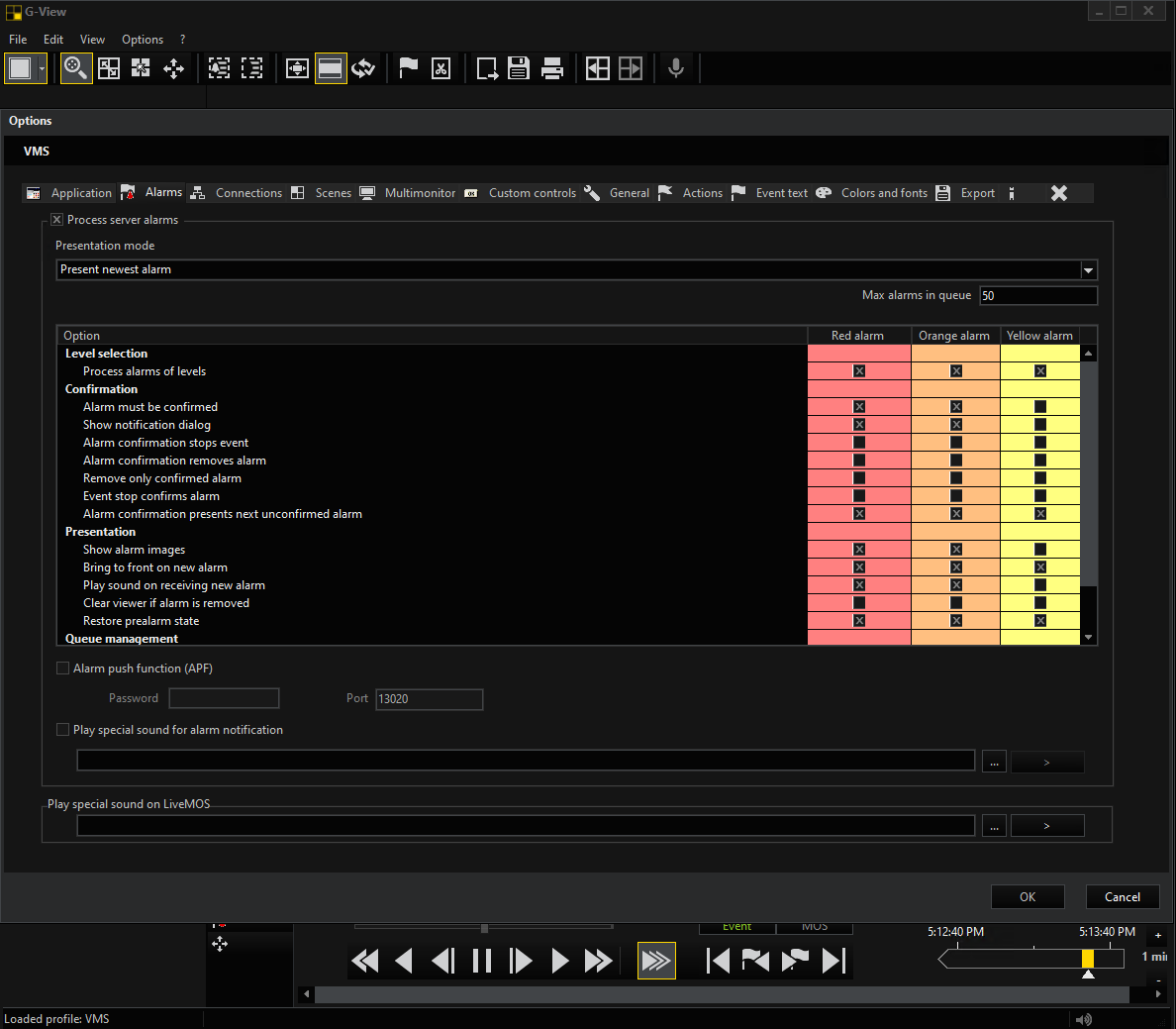 Figure 12. Geutebrück G-View: enable alarm processing
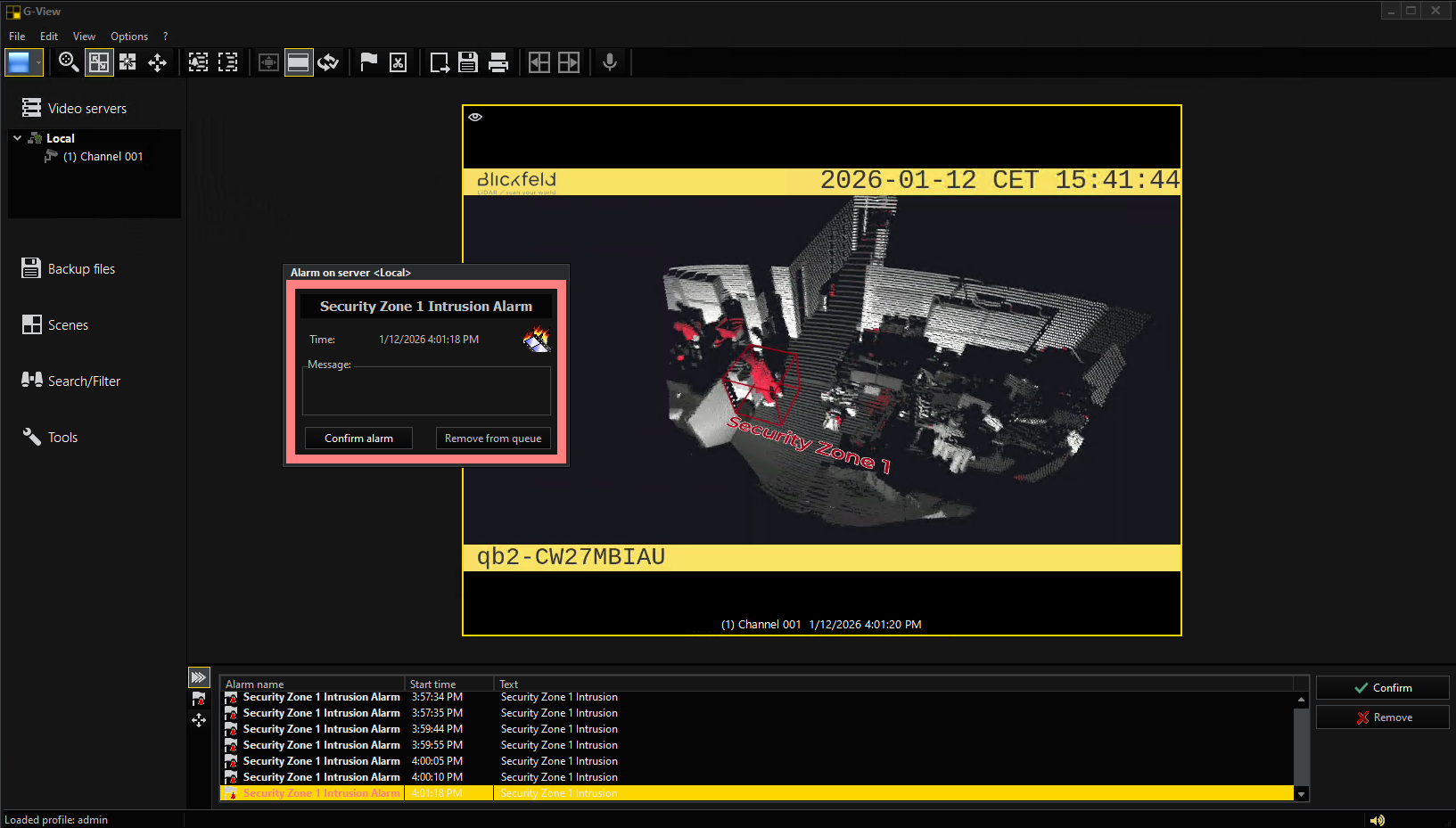
The zone intrusion event in the Security Zone 1 from QbProtect and the configured intrusion event rule chain will be generating an alarm in G-View, as shown in the Figure below.